
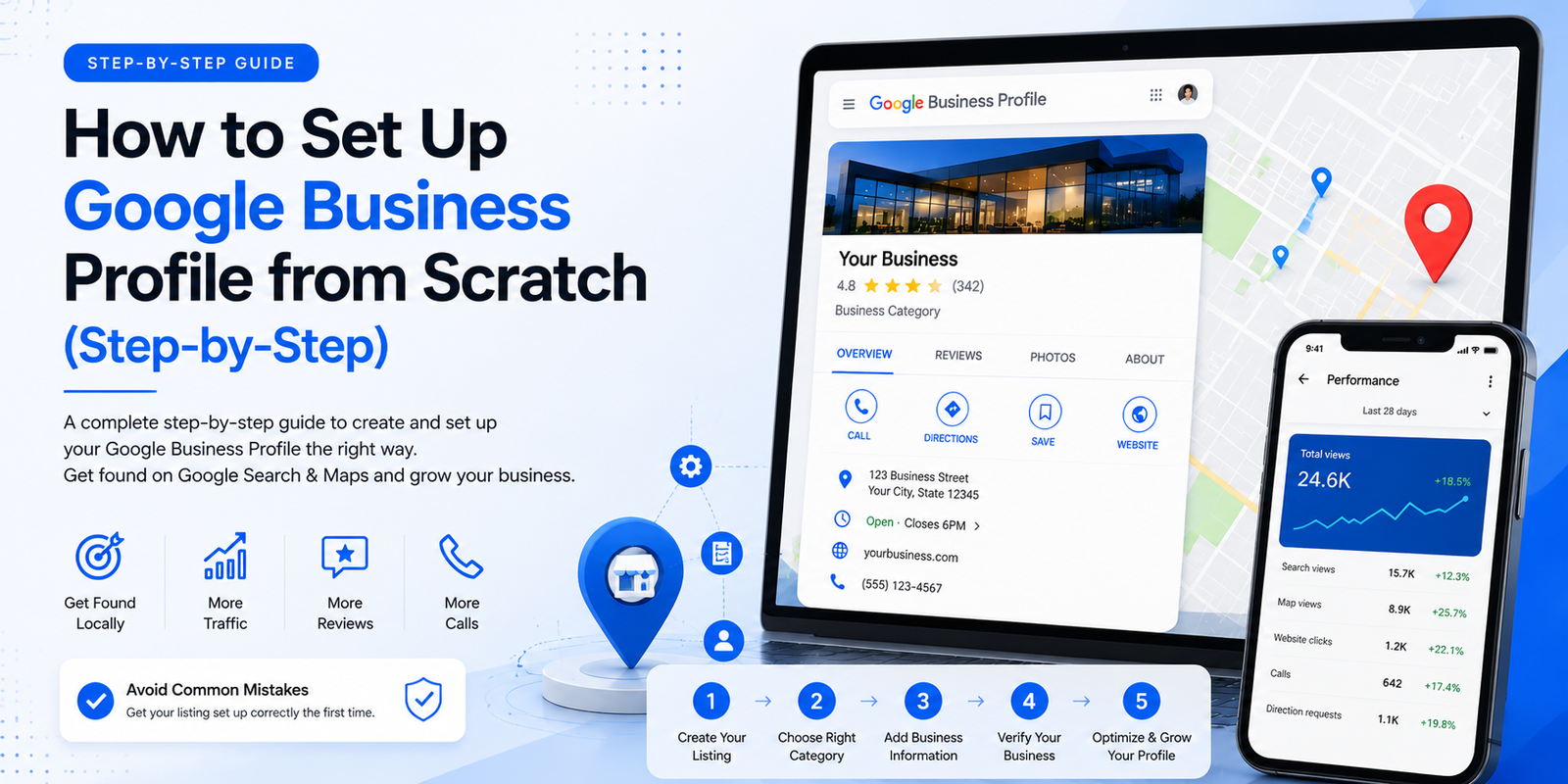
Setting up a Google Business Profile takes about 15 minutes. Getting it right — in a way that actually helps your business rank — takes a little more thought. This guide walks you through both.
Most tutorials stop at ‘fill in your address and hit publish.’ That is not enough. The decisions you make during setup — particularly your primary category — directly affect where you appear in Google Maps. Once you’re set up, the Google Business Profile Optimization Guide covers everything you need to do to turn a live listing into a ranking one.
| 📋 Before You Start: You will need: a Google account (Gmail), your exact business name, your business address or service area, a working phone number, and your website URL if you have one. |
Table of Contents
Step 1: Go to the Right Place and Start Your Listing
Go to business.google.com and sign in with your Google account. Click ‘Add your business’ or ‘Manage now.’ Before you type anything, do a quick search to check whether a listing for your business already exists.
| Google sometimes auto-generates listings for businesses based on data it finds across the web. If your business already has an unclaimed listing, claim it rather than creating a new one — duplicate listings can get both suspended. |
Step 2: Enter Your Business Name Correctly
Your business name in GBP must match your real-world business name — exactly. This is simpler than it sounds, but it is where many businesses make their first mistake.
What That Means in Practice
- If your business is legally registered as ‘Metro Plumbing Ltd,’ that is what goes here
- Use consistent capitalisation — no ALL CAPS unless that is genuinely your brand name
- No location names appended unless they are part of your actual trading name
The Keyword Stuffing Trap
Do not add keywords to your business name. This is against Google’s guidelines and a common reason listings get suspended. ‘Metro Plumbing — Emergency Plumber Austin TX’ is not an acceptable business name unless it is literally your registered trading name. Your GBP Categories: How to Choose the Right One and services sections are where you signal what you do to Google — not your business name.
| Pro Tip: Your categories and services sections are where you signal relevance to Google. Keep your name clean. |
Step 3: Choose Your Business Category
This is the single most important decision in your entire GBP setup. For the full strategy behind category selection — including how to find the right category for every industry — read: GBP Categories: How to Choose the Right One. Here’s the practical setup process:
How to Find the Right Primary Category
- Search Google for your most important service keyword in your city
- Look at the top 3 businesses appearing in the Map Pack
- Click each listing and note their primary category
- The category shared by the majority of top-ranking competitors is almost certainly the right one
| Watch Out: Google’s category list uses specific terminology. ‘Plumber’ and ‘Plumbing contractor’ are different categories with different ranking implications. Always match what your top competitors use — do not guess. |
Adding Secondary Categories
After choosing your primary category, add up to 9 secondary categories. These expand the searches you are eligible to appear for without diluting your primary category. Add secondary categories for every distinct service you genuinely offer.
Step 4: Add Your Location or Service Area
Google will ask whether you have a physical location customers can visit. Your answer determines what type of listing you get.
If You Have a Physical Location
Enter your address exactly as it appears on your website and any other online directories. This consistency — called NAP consistency — is a local ranking signal. For more on how NAP affects your rankings, see our Local SEO for Small Businesses guide.
If You Are a Service Area Business
Service area businesses (SABs) — plumbers, electricians, cleaners, delivery services — can hide their address and define a service area instead. Select the option to hide your address, then define your area by city, postcode, or radius. You can add multiple areas.
| Pro Tip: SABs generally have slightly lower local pack visibility than fixed-location businesses, but you can still rank effectively with a well-optimised profile and strong review volume. |
Step 5: Add Your Contact Information
Add your primary phone number and website URL.
Phone Number
- Use a local phone number where possible — local numbers are a relevance signal
- The number here should match exactly what is on your website and other directories
- If you use call tracking numbers, ensure they are consistent — changing numbers disrupts NAP consistency
Website URL
Link to the most relevant page for local searchers — usually your homepage, or a specific service page if this listing is for a specific location. Do not link to a social media profile as your primary website.
Step 6: Verify Your Business
Verification is mandatory. An unverified listing does not appear in Google Maps or local search results. For full details on all verification methods, see the Google’s Business Profile Help Centre.
| Method | How It Works | Timeline |
| Postcard by Mail | Google mails a postcard with a 5-digit code to your address | 5–14 days |
| Phone Call / SMS | Google calls or texts a code to your business number | Immediate |
| Google sends a code to your business email | Immediate | |
| Video Recording | Record a walkthrough of your business for Google to review | 2–5 days |
| Live Video Call | A Google agent verifies via live video call | Same day |
| Instant Verification | Available if your website is verified in Google Search Console | Immediate |
| Watch Out: During the postcard verification period, do not edit your business name, address, or category. Doing so resets the process and a new postcard gets sent. Tip: if you have your website verified in Google Search Console, you may be eligible for instant verification — check this option first. |
Step 7: Complete Your Profile After Verification
Verification gets your listing live. What you do next determines whether it actually ranks. Most businesses stop at verification — which is exactly why a well-completed profile stands out.
| 1. Write Your Business Description 750 characters. Describe your core service, location, key differentiators, and include your primary keyword naturally. No links. No promotional superlatives. |
| 2. Add Your Opening Hours Include regular hours and mark special hours for bank holidays. Accurate hours prevent negative reviews from customers who arrive when you are closed. |
| 3. Upload Photos Minimum 10: logo, cover photo, interior (if applicable), exterior, products or work examples, and team. Real photos only — no stock images. |
| 4. Add Services or Products List every individual service you offer with a short description. Be specific — ‘Boiler Installation’ not ‘Heating Services.’ |
| 5. Seed Your Q&A Section Post 5–6 common customer questions from your personal Google account, then answer them officially from your business profile. |
| 6. Publish Your First Post Write a short introduction to your business (150–250 words), add a photo, and include a link to your website. This shows Google your profile is active from day one. |
Common Setup Mistakes That Kill Your Rankings
Mistakes That Get Listings Suspended
- Using a PO box or virtual office address that is not staffed
- Creating multiple listings for the same location
- Adding keywords to your business name
- Using a residential address for a home-based business without disclosing it
Mistakes That Hurt Your Rankings
- Choosing a secondary category as your primary
- Leaving your profile at less than 70% completeness
- NAP information that does not match your website
- Never publishing posts or updating the profile after setup
Frequently Asked Questions
Q: Is Google Business Profile free?
Yes, completely free. Google does not charge to create, verify, or maintain a Google Business Profile.
Q: How long does it take for my listing to appear after verification?
Usually, within 24–72 hours of completing verification. In some cases, it can take up to a week. If your listing is not appearing after 7 days, check your GBP dashboard for any outstanding steps or policy violation notices.
Q: Can I set up a Google Business Profile if I work from home?
Yes. If you serve customers at their location, hide your home address and set a service area instead. If customers come to you, you can list the address — but be aware it will appear publicly on Google Maps.
Q: What if I do not have a website yet?
You can still set up and verify a GBP listing without a website. However, a listing without a website link is at a disadvantage. Building at least a simple website should be a priority. In the meantime, verify your domain in Google Search Console as soon as you have one — it unlocks instant verification and provides valuable ranking data.
Q: Can someone else set up my Google Business Profile for me?
Yes. In your GBP dashboard, go to Business Profile settings > Managers > Add, and enter their Google account email. As the owner, you retain full control and can remove their access at any time.
Q: What if my business already has reviews, but I never set up a profile?
Google sometimes generates listings automatically. Claim the existing listing rather than creating a new one — all existing reviews will carry over.
Your Profile Is Live — Now What?
Setup is the beginning, not the finish line. The work that actually drives rankings is ongoing:
- Publish a new GBP Post every 7 days
- Ask every satisfied customer to leave a Google review
- Respond to every review within 48 hours
- Add new photos at least twice per month
- Check GBP Insights weekly
For the full optimization system — categories, photos, posts, Q&A, the 25-point checklist, and performance tracking — read the complete Google Business Profile Optimization Guide.
And when you are ready to understand what moves the needle on Google Maps rankings beyond your profile, see: Google Maps Ranking Factors.

No responses yet