
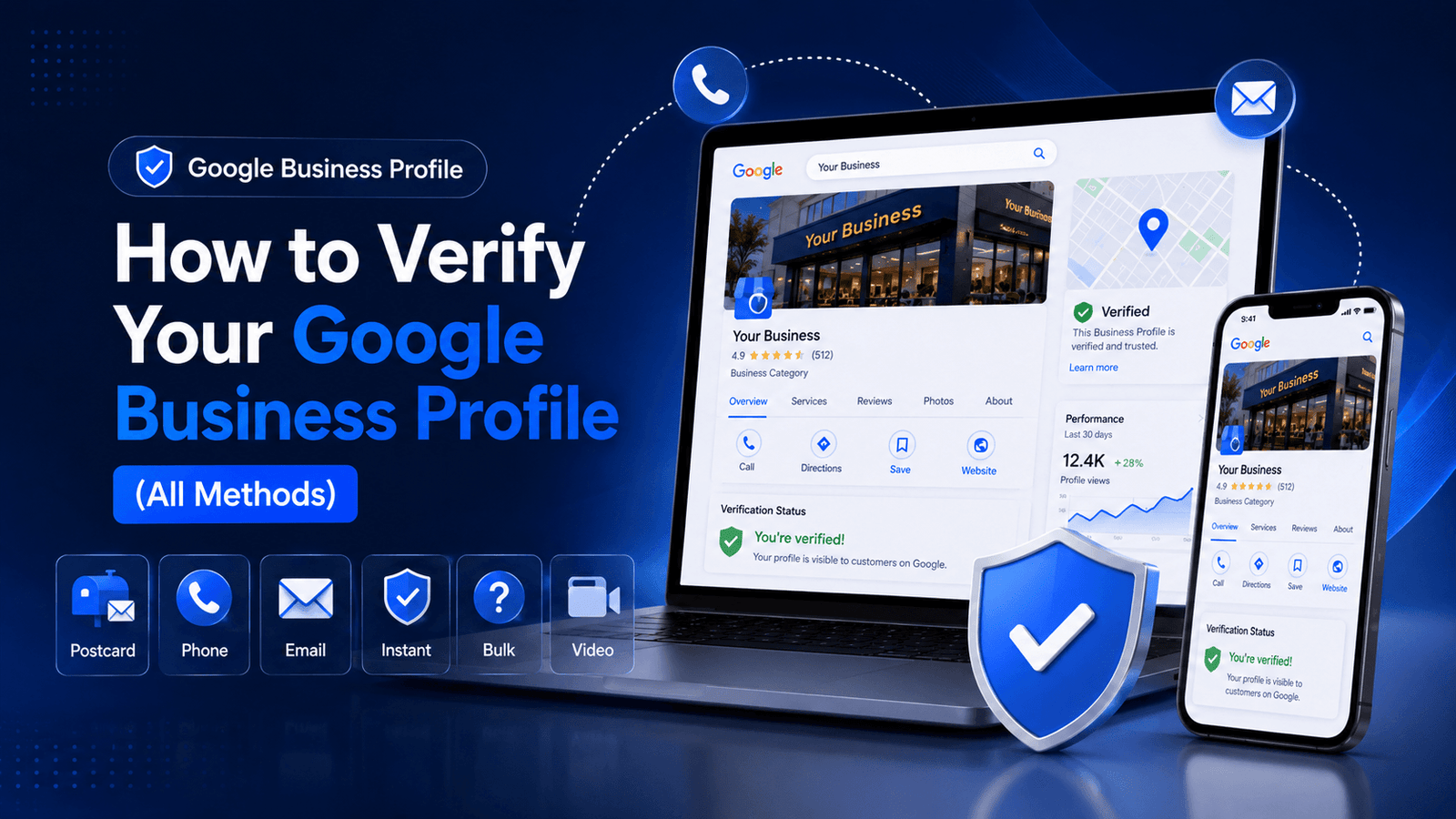
Verify Google Business Profile — this is one of the most searched actions in local SEO, and for good reason. Until your Google Business Profile is verified, it does not appear in Google Search or Google Maps. You cannot respond to reviews, your edits do not go live, and your business is effectively invisible to every local searcher. Verification is the gateway. Without it, every optimization effort you put into your profile is worthless. This guide covers every verification method Google currently offers — video recording, phone, email, postcard, live video call, instant verification, and bulk verification — with exact steps, what to do when things go wrong, and what to expect at each stage.
Why Google Requires Business Verification
Google’s verification process exists to protect the integrity of its Maps and Search ecosystem. Without it, anyone could claim any business listing — including a competitor’s — and control the information shown to searchers. Fake listings, manipulated addresses, and fraudulent business categories would become widespread.
For your business, verification does two things: it unlocks the full management dashboard for your profile and it signals to Google that the business is legitimate, active, and accurately represented. A verified profile is treated differently from an unverified one — it can rank, it can receive reviews, and it can display the complete set of business information to searchers.
According to Google’s Business Profile Help Center, verification also protects business owners by ensuring that only authorized representatives can make changes to a listing. If your profile is unverified and someone else claims it, you lose control of how your business appears to the public.
For context on how a verified profile fits into the broader local SEO picture, the guide on local SEO for small businesses explains how Google determines local ranking signals beyond verification.

Want to verify your GMB profile and rank higher against the competitor?
Click the buttons below to Talk OR Chat to the expert
All Google Business Profile Verification Methods at a Glance
Google offers multiple verification methods, but not all methods are available to all businesses. The options you see depend on your business type, category, location, and account history. Here is a complete overview:
| Verification Method | Who It’s Available To | Time to Complete | Difficulty |
| Video recording | Most new listings | 1–3 business days | Medium |
| Phone / SMS | Eligible existing businesses | Instant | Easy |
| Eligible existing businesses | Instant | Easy | |
| Postcard by mail | All business types (fallback) | 5–14 business days | Easy |
| Live video call | Select categories (Google agent) | 30–60 minutes | Medium |
| Instant verification | Verified Google Search Console | Immediate | Easy |
| Bulk verification | 10+ location businesses | Varies (form-based) | Advanced |
The method Google presents first when you begin verification is typically the one it considers most appropriate for your business type. You may not have access to all methods simultaneously. If your preferred method is not available, complete the one offered — you cannot force Google to offer a different option.
Method 1: Video Recording Verification (Most Common for New Listings)
Video recording has become the primary verification method for most new Google Business Profile listings created from 2022 onward. Google uses it to confirm that the business physically exists at the stated location and that the person managing the profile is genuinely associated with it.
What Google Is Looking For
Your video needs to show three things: the business location (exterior signage and street context), the interior or operational environment, and confirmation of your identity as the business owner or manager. The video does not need to be polished — it needs to be authentic. Staged or edited footage is more likely to be rejected.
What to Include in Your Verification Video
| What to Film | Why Google Needs It |
| Business exterior / storefront | Show the building, signage, and street number clearly |
| Business signage close-up | Legible sign with the exact business name as registered |
| Business interior | Office, shop floor, or workspace — confirms real operation |
| Equipment or tools of trade | Service vehicles, professional equipment, stock |
| Business owner or staff | Confirm real people operate the business |
| Proof of address (if home-based) | Mail, utility bill, or lease agreement visible in shot |
Step-by-Step: Submitting a Video Recording Verification
- Sign in to your Google account and go to business.google.com
- Select the profile you want to verify
- Click ‘Verify now’ — if video is your offered method, you will see the option to record or upload
- Record a continuous, unedited video on your mobile device (most devices allow this natively)
- Upload the video through the GBP interface — files up to 4GB are accepted
- Google reviews the footage within 1 to 3 business days and emails you the result
If your video is rejected, Google will indicate why. The most common rejection reasons are: insufficient exterior signage, a location that does not match the registered address, or a video that appears edited. Re-record and resubmit — there is no penalty for resubmission.
Method 2: Phone or SMS Verification
Phone verification is the fastest method when available. Google sends a one-time verification code to the phone number associated with your business listing. You enter the code in your GBP dashboard and the profile is instantly verified.
When Phone Verification Is Available
- Your business phone number is publicly listed and verifiable
- The number matches a registered local number in Google’s database
- Your business category is eligible (most standard service businesses qualify)
- The listing is not flagged for potential policy issues
Step-by-Step: Phone Verification
- Go to business.google.com and select your profile
- Click ‘Verify now’ and choose ‘Call’ or ‘Text message’ if offered
- Ensure you have immediate access to the listed phone number
- Receive the 6-digit code via call or SMS
- Enter the code in the verification field within 15 minutes
- Your profile is now verified and live
If the phone number on your profile does not match your publicly listed number — on your website, in directories, or in Google’s records — phone verification may not be offered. Audit your NAP (Name, Address, Phone) consistency across all online platforms before attempting this method.
Method 3: Email Verification
Email verification works similarly to phone — Google sends a verification code to the email address associated with the business. It is typically offered alongside phone verification for eligible businesses.
Step-by-Step: Email Verification
- Select ‘Email’ as your verification method from the GBP dashboard
- Check that the displayed email address is one you actively access
- Open the email from Google Business Profile and copy the verification code
- Enter the code in your GBP dashboard within the validity window
- Verification is complete immediately upon successful code entry
Use a business email address (not a generic Gmail) if possible. Google is more likely to offer email verification to profiles whose email address matches their website domain — it is an additional credibility signal.
Method 4: Postcard by Mail
Postcard verification is the oldest method and the universal fallback — Google offers it to virtually all business types when other methods are unavailable. A physical postcard with a 5-digit verification code is sent to the business address registered on your profile.
Step-by-Step: Postcard Verification
- Select ‘Mail’ as your verification option from the GBP dashboard
- Confirm your business address is completely accurate — the postcard goes to exactly what is listed
- Do not make major edits to your profile while the postcard is in transit (it may invalidate the process)
- Wait 5 to 14 business days for the postcard to arrive
- Locate the verification code on the postcard — typically in the format ‘XXXXX’
- Enter the code at business.google.com under ‘Verify now’
If the postcard has not arrived after 14 days, log in and request a new one. Postcards are sometimes delayed or lost in commercial mail sorting. Do not request a new code until the full 14 days have passed — requesting too early cancels the original code.
Make sure your business address is complete and formatted correctly before requesting a postcard. The guide on how to set up your Google Business Profile covers NAP accuracy requirements in detail.
Method 5: Live Video Call Verification
Live video call verification is offered to select business categories where Google determines a real-time review is necessary. During the call, a Google support agent will ask you to show your business location, signage, and proof of ownership — similar to the video recording method but conducted in real time.
How to Prepare for a Live Video Call
- Have your business exterior and signage clearly visible and accessible
- Prepare a government-issued ID or business license to show if asked
- Ensure your internet connection is stable — a dropped call may require rescheduling
- Be at the physical business location for the call — remote completion is not accepted
- Have your GBP dashboard open on a separate device during the call
Scheduling is done through the GBP interface when this option is available. Availability varies by region. If you miss a scheduled call, you can reschedule — but repeated no-shows may limit your options.
Method 6: Instant Verification via Google Search Console
If your website is already verified in Google Search Console using the same Google account as your GBP, instant verification may be offered automatically. This method requires no code — Google cross-references the verified domain ownership and confirms the business identity in real time.
Requirements for Instant Verification
- Your Google Search Console property must be verified with the same Google account used for GBP
- The verified domain in Search Console must match the website listed on your GBP
- The business category must be eligible — not all categories qualify
Instant verification is one of the strongest arguments for ensuring your website is set up in Google Search Console before creating your GBP listing. It eliminates the waiting period entirely. For the broader SEO context of why Search Console matters, see the overview of how Google ranks websites for foundational signal context.
Method 7: Bulk Verification for Multi-Location Businesses
If you manage 10 or more business locations under the same brand, bulk verification allows you to verify all locations through a single request rather than verifying each profile individually.
How Bulk Verification Works
- Access Google Business Profile Manager and select ‘Get verified’ for your business group
- Complete the bulk verification request form — Google requires basic business documentation
- Submit a location data spreadsheet with all location details (name, address, phone, category, website)
- Google reviews the submission — timelines vary but typically take several weeks
- Once approved, all locations are verified centrally and can be managed from the Business Profile Manager
Bulk verification is designed for franchises, retail chains, and multi-location service businesses. It requires stricter documentation and a longer review timeline than individual verification — but the operational efficiency for large-scale profile management is significant.
What Happens After You Verify Your Google Business Profile
Verification is not the finish line — it is the starting point. Once your profile is verified, the full optimization work begins. Here is what should happen in the first 48 hours after verification:
- Review every profile field for accuracy. Business name, category, address, phone, website, and hours should all be confirmed as correct.
- Upload a minimum of 10 photos. Cover photo, logo, interior, exterior, team, and product or service images. Profiles with photos receive significantly more engagement than those without.
- Write or review your business description. Optimized descriptions improve profile relevance. Ensure your primary keyword appears naturally.
- Publish your first GBP Post. Signal to Google that your profile is active and managed.
- Seed your Q&A section. Post 3 to 5 foundational questions and answer them from your business account.
- Enable messaging if available in your region. Reduces friction for potential customers and improves engagement signals.
The complete post-verification optimization workflow is covered in the Google Business Profile optimization pillar guide, which maps out every profile element and the priority order for implementation.
For the Q&A component specifically, the GBP Q&A seeding guide covers exactly which questions to post and how to write answers that convert.
Google Business Profile Verification: Troubleshooting Common Problems
Verification rarely goes completely smoothly for everyone. Here are the most frequent issues and how to resolve them:
| Problem | Likely Cause | Fix |
| Verification code never arrived (postcard) | Wrong address on file or mail delay | Check address accuracy, request a new code after 14 days |
| Video verification rejected | Business signage or location not clearly shown | Reshoot — show storefront sign, interior, and equipment clearly |
| Phone option not available | Number not matching public records | Ensure phone number matches directory listings before retrying |
| Profile stuck on ‘pending’ | Google still reviewing submission | Wait 3–7 business days; contact support if no update after 14 |
| Instant verification not triggering | Search Console domain not matching GBP email | Verify both accounts use the same Google login |
| Verification code rejected | Code expired or entered incorrectly | Request a new code; codes expire after 30 days |
| Suspended after verification | Policy violation detected by Google | Submit a reinstatement appeal with supporting business documents |
For issues that persist beyond 14 days or involve a suspended profile, contact Google Business Profile support directly through the Business Profile Help Center. Live chat and callback support are available for verified account holders — another reason to complete verification as quickly as possible.
Verification for Service-Area Businesses and Home-Based Operations
If you operate a service-area business — a plumber, mobile dog groomer, freelance consultant, or similar — you do not need a customer-facing physical address to verify on Google. Google specifically accommodates service-area businesses.
Key Differences for Service-Area Businesses
- During setup, you select your service area instead of displaying a specific address
- Your physical address remains hidden from the public listing
- Video verification is the most commonly offered method for service-area businesses
- In the video, show your vehicle, equipment, or home office environment as proof of operation
- Google still requires confirmation that a legitimate business operates — it just does not need to be at a storefront
Home-based businesses follow the same process. If you work from home, show your dedicated workspace, any professional equipment, and mail or documentation confirming your name and address. The standard for home-based verification is proof of real business activity, not a commercial premises.
Once verified, optimizing your service-area listing follows the same principles as any other profile. The guide on optimizing your business description is particularly relevant for service-area businesses where the description carries more weight than photos of a physical space.
Frequently Asked Questions
How long does it take to verify a Google Business Profile?
It depends on the method. Phone and email verification are instant once you enter the code. Video recording verification typically takes 1 to 3 business days for Google to review. Postcard verification takes 5 to 14 business days for delivery, then you enter the code. Live video call verification is completed during the session itself but requires scheduling. If your profile shows ‘pending’ for more than 14 days, contact Google Business Profile support directly.
Why is my Google Business Profile verification option missing or greyed out?
This usually happens for one of three reasons: your business category may not yet be eligible for certain verification methods; your business information (particularly your phone number or address) may not match publicly verifiable records; or your Google account may not yet be linked to a verified Google Search Console property (which unlocks instant verification). Review your business details for accuracy and try again after 24 hours.
Can I verify a Google Business Profile without a physical address?
Yes. Service-area businesses that operate without a customer-facing physical location can still verify on Google. During setup, you designate your service area instead of a storefront address. Google may offer video verification or phone verification as your primary options. You will still need to demonstrate that your business is legitimate and operational, typically through the video recording method.
What happens if my Google Business Profile gets suspended after verification?
A post-verification suspension usually means Google’s automated systems detected a potential policy violation — common triggers include keyword stuffing in the business name, a mismatched address, or a category that does not match the actual business. You will need to submit a reinstatement appeal through the Business Profile Help Center, providing documentation such as a business license, utility bill, or bank statement that confirms your business name and address.
Can I edit my Google Business Profile while it is pending verification?
Yes, but with limitations. You can update most profile fields while verification is pending, but your listing will not appear publicly on Google Search or Maps until verification is complete. Significant changes to your business name, address, or category after submitting for verification may reset the process or trigger a new verification requirement.
How do I verify multiple locations at once?
Businesses with 10 or more locations can apply for bulk verification through the Google Business Profile Manager. This requires submitting a verification request form with a spreadsheet of all locations. Each location is reviewed individually, but the process is managed centrally rather than one-by-one. Single-location businesses and those with fewer than 10 locations must verify each profile individually.
Is video verification permanent, or do I need to re-verify?
Once your Google Business Profile is verified, the verification is generally permanent unless Google detects significant changes to your business — such as a new address, ownership transfer, or a major category change. In those cases, Google may prompt you to re-verify. Routine updates to hours, photos, descriptions, and posts do not trigger re-verification.

No responses yet